
- Competitively priced
- Supports all NBN speed tiers
- Easy setup and expansion
- Only available through SpinTel and MATE
- Only two Ethernet ports per unit
- 2.4Ghz speeds could be better
Around half of the NBN providers we track in our database now offer WiFi 7 networking gear as plan inclusions or premium add-ons. That's a step in the right direction as far as futureproofing is concerned because WiFi 7 networks generally offer better performance and unique features for WiFi 7 devices. But high-end WiFi 7 routers hang around $1,000, and you can easily spend thousands on a multi-unit WiFi 7 mesh WiFi system.
Thankfully, manufacturers like TP-Link build products for the cheaper end of the market. And in the case of the TP-Link HB210 Pro, "cheaper" doesn't translate to "devoid of features". But before I get into my full HB210 Pro review, check out today's popular NBN plans from our database.
|
#1
|
Tangerine Telecom

FTTP, HFC
Speedy Max NBN 500/50
$59.90/mth
Min. cost $59.90
|
|
#2
|
Superloop

FTTP, HFC
Family Max nbn500/50
$74/mth
Min. cost $74
|
|
#3
|
Aussie Broadband

FTTP
Super-Fast Pro nbn - Unlimited
$114/mth
Min. cost $114
Link not supplied
|
|
#4
|
More

All Fixed Line nbn®
Value Plus NBN
$100/mth
Min. cost $100
Link not supplied
|
|
#5
|
Swoop

FTTP, HFC
nbn® Home Ultrafast
$85/mth
Min. cost $85
Link not supplied
|
Home networking equipment is tested in a first-floor apartment with thick WiFi-interfering walls using an FTTC NBN 100/20 connection. The networking device is deliberately placed at one end of the apartment (instead of a central location) to test wireless range and penetration. Basic speed tests are performed at multiple locations inside and outside the apartment, first with a Synology RT6600ax router and then with the networking device being reviewed for comparative results. Everyday, internet tests are also performed with relevant results mentioned for streaming, web browsing, online gaming, video and voice calls, as well as downloading large files and transferring them across devices on the local network.
What we like about the TP-Link HB210 Pro
If you opt for a MATE NBN plan, you can nab the TP-Link HB210 Pro for $165 as a plan add-on. Alternatively, larger homes and those prone to WiFi interference may consider a plan from SpinTel, which pairs one or two HB210 Pro units with a TP-Link VX230v modem-router for $279.95 or $419.95, respectively. While I don't advise using the VX230v, you can ditch it and stick with a two-unit HB210 Pro mesh WiFi system as long as you're not after a home phone line (or don't live in an FTTN or FTTB home). You may also be able to add an extra HB210 ($150) or two ($280) from the SpinTel store.
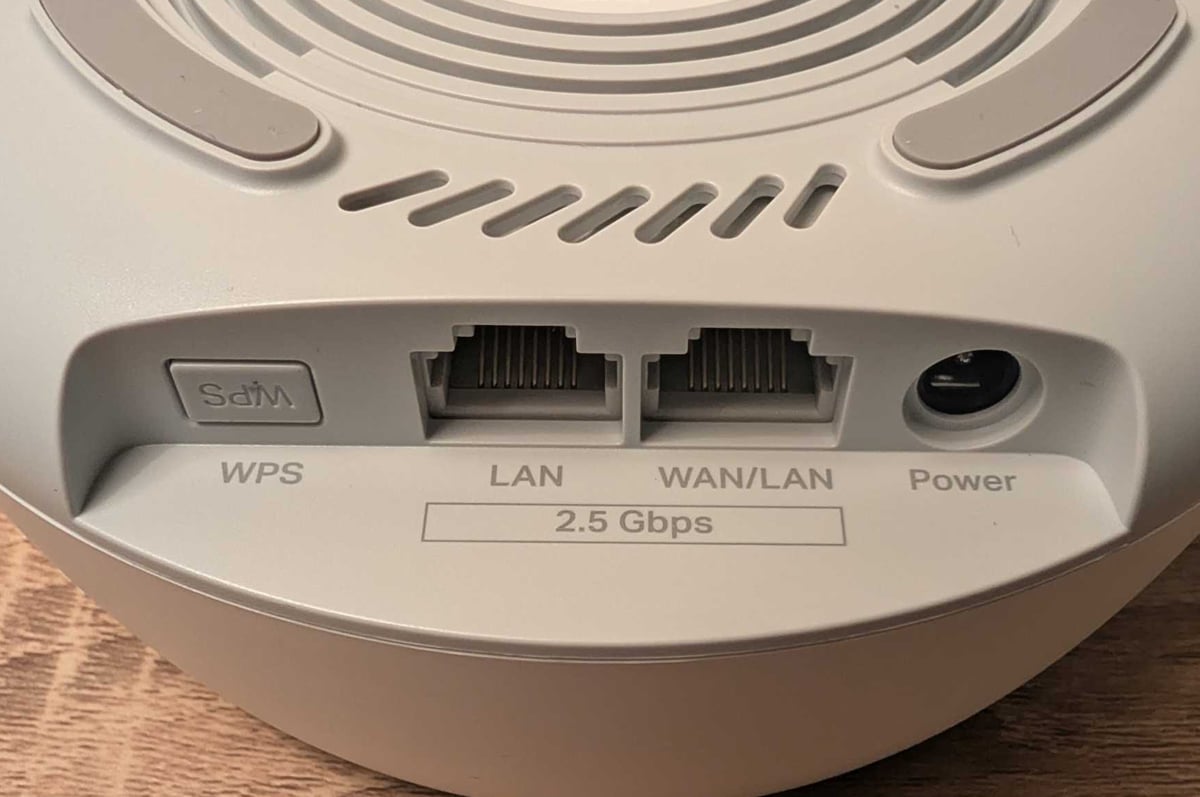
Initial setup is made easier by generous-length cables and clearly marked ports. Download the Aginet companion app before you get started to further streamline the setup process. Just connect the power cable, then use the included Ethernet cable to link your NBN connection box with the 'WAN/LAN' Ethernet port. Both Ethernet ports are capable of 2.5Gbps speeds, while WiFi speeds max out at 3.6Gbps. Practically speaking, the HB210 Pro is compatible with all NBN plans, including NBN 2000.
Jump over to the Aginet app and follow the prompts. If your experience is like mine, you'll be online in under 10 minutes, and I'm with Exetel, so I didn't receive a preconfigured HB210 for this review. During that speed setup, you'll have access to videos if you need additional information, and you'll be prompted to optionally rename your WiFi network. Make note of the admin password you're asked to create, especially if you want to check out the HB210 Pro's web portal.
Unlike other mainstream mesh competitors, the HB210 Pro offers both a companion app and a browser-based web portal. Most users should be at home with the monitoring and basic tools in the Aginet app, including a dedicated tab for parental controls. Dig deeper into the app settings or use the admin password you created during setup to access the web portal, by typing 192.168.88.1 into a browser. In the web portal, there are more tweakable settings under the 'Basic' view, while more advanced network users can find even more personalisation under the 'Advanced' view.
With just one HB210 Pro, you can create a TP-Link router network. But TP-Link sent me three HB210 Pro units to test in mesh configuration. I was impressed by how fast and easy it was to add extra HB210 Pros to a network: one minute to set up via the Aginet prompts – hit the plus in Aginet, then choose 'Add Agent' – then another minute of waiting. After that, my HB210 network was expanded, and it just worked.
One HB210 Pro did a decent job inside my apartment, but I had whole-home 5GHz WiFi coverage when I added a second unit. I honestly didn't really need a third unit as two HB210 Pros did such a good job, even offering reliable coverage in areas that are typically WiFi dead spots. More importantly, I didn't experience any reliability issues after more than two weeks of testing. And the HB210 Pro comfortably tackled every internet task I threw at it.
Routers, modem-routers and mesh WiFi systems are compatible with most NBN connections, including FTTP, HFC, FTTC, Fixed Wireless and Sky Muster satellite. All of these NBN technologies use respective network termination devices (NTDs), which is a fancy term for “connection box” or “modem”. If you live in an FTTB or FTTN home, you’ll need a modem-router to get online. You can still connect a router or mesh WiFi system to a modem-router, but the modem-router first needs to be in bridge mode so it can then connect to a router or mesh WiFi system.
What we dislike about the Amazon HB210 Pro
The first major detractor for the TP-Link HB210 Pro is availability. You can only get it via MATE or SpinTel. Even then, MATE only offers a single unit, which offers okay-but-not-great coverage and speeds, and SpinTel mainly offers one or two units bundled with the middling TP-Link VX230v. Admittedly, you can save money by buying the cheaper TP-Link Deco BE22 (capped at 1Gbps Ethernet speeds), or the pricier-but-faster TP-Link Deco BE25 from retailers.
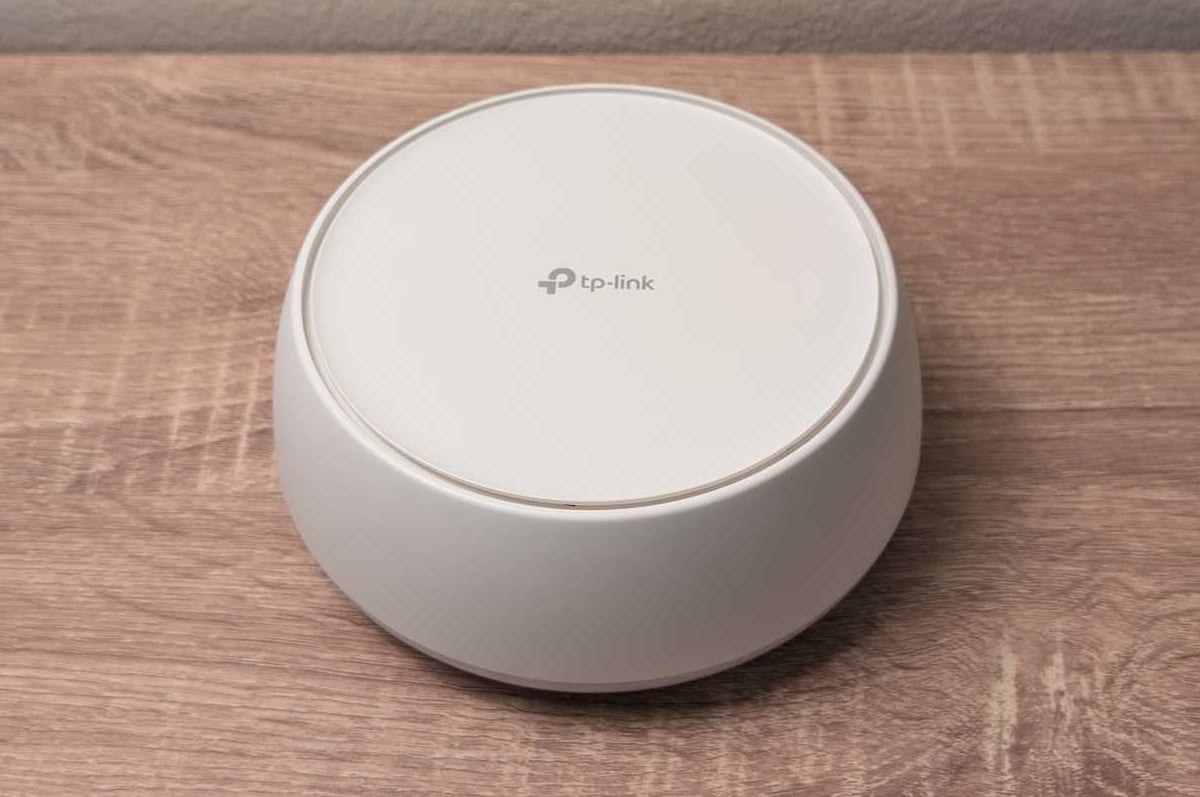
All three of these TP-Link mesh WiFi units look indistinguishable. That design certainly isn't an eyesore like routers with external antennas, but the HB210 Pro is bulkier than the Amazon eero 7. Unlike the eero 7, the HB210 Pro doesn't sport auto-sensing Ethernet ports, so you'll need to use the correct port for the internet. After that, you only have one remaining Ethernet port with the HB210 Pro, which is okay if you use a network switch for other priority wired devices, but it's not ideal if you're coming from a router where four ports are standard.
While setup is mostly a painless affair, the Aginet guided steps do require you to flip over the HB210 Pro at one point – after it's connected and powered on – to snap a pic of the QR code. That's also the most streamlined way to add extra HB210 Pro units, so keep them in reach during setup and network expansion.
If you're using the TP-Link HB210 Pro as a standalone router, there are coverage compromises for larger homes or those with thicker walls (like mine). The HB210 Pro isn't as quick to revert to the slower 2.4GHz WiFi band as the Netgear Orbi 370, but the back of my apartment was still relegated to 2.4GHz coverage. At best, that was a 25% hit to download speeds. At worst, it was a 76% degradation.
While adding one extra unit fixed the 2.4GHz reliance inside my apartment, even adding two extra HB210 Pros didn't stop all of my outside test locations from reverting to 2.4GHz. In fairness, that's not entirely unexpected, but what is disappointing is best-case 2.4GHz speeds were still around 70% slower than inside my apartment. If you want a mesh WiFi system that can comfortably tackle outside devices, you may want to look elsewhere.
My other main issues were with the back-end systems. I was prompted to activate Multi-Link Operation (MLO) during initial configuration, but it operates as a separate network. That's not as streamlined as MLO features for competing WiFi 7 mesh WiFi systems. If you don't activate MLO during setup, you'll have to dig into the web portal to enable it. Just note that you can't be logged in to the Aginet companion app and the web portal simultaneously; you'll be booted from whichever connection is older.
QoS is one of the best user-friendly features for all WiFi users, but MLO is a new user-convenience feature that's new to WiFi 7. Short for 'Multi-Link Operation', MLO lets WiFi 7 devices on a WiFi 7 network connect to multiple wireless bands simultaneously. The benefit for these devices is that they get faster speeds, lower latency, and better reliability whereas older WiFi devices can only connect to the 5GHz or 2.4GHz band (WiFi 6E devices can also connect to 6GHz).
Quality of Service (QoS) was also disabled by default. That'd be less of an issue if it was simply a 'toggle on' update, but there are some extra steps required. First, you'll want to run an internet speed test, ideally with no devices downloading or streaming on your network. There's actually one in the Aginet app or web portal, which is handy. Make note of the download and upload speeds, then input them into the QoS screen once you've toggled it on to make it activate. It mostly works well, but there were a few instances where it took a few seconds for the QoS to kick in, so streaming did occasionally (briefly) drop in quality.
My other app quibble was that Aginet is only about 50% accurate at identifying devices with meaningful names. This may cause issues for adding parental controls if you have to manually identify relevant devices.
I have a soft spot for Quality of Service. That's because, at its best, QoS automatically recognises priority internet tasks and allocates finite download/upload speed to latency- and bandwidth-sensitive tasks. If you like to play games online or stream videos in undisturbed full resolution, QoS kicks in when someone starts trying to download a file at full speed. Their total download speed will be capped relative to the bandwidth required for full-resolution streaming and undisturbed online gaming.
TP-Link HB210 Pro – Final Thoughts

The TP-Link HB210 Pro follows in the impressive footsteps of the TP-Link HX510. While it leaves a slightly larger footprint than that WiFi 6 pocket rocket, the HB210 Pro has great speeds and a feature set that adds extra value to its already competitive pricing. With straightforward expansion, you can viably turn problematic WiFi zones into speedy 5GHz areas. But the biggest limitation is you can only get the admittedly great HB210 Pro from a couple of NBN providers.
We consider several factors when reviewing networking equipment, including:
- Type: Router, modem-router or mesh WiFi system. Supported NBN technologies and plan speeds.
- Design: Size, weight and standing options. Internal or external antennae. Available ports, WiFi version, and single, dual or triband wireless.
- Setup: Plug-and-play configurations vs laborious setup. Companion apps and guided setups are a plus.
- Performance: Ethernet and WiFi speed tests for downloads, uploads and latency. Real-time latency test for online gaming, VoIP and/or video calls. Plus, everyday use like downloading, uploading, browsing and streaming.
- Versatility: Band steering (single SSID), quality of service and other features. Ease of configuration, plus mesh expansion.
These are the most popular NBN 50 plans with WhistleOut users this week:
|
#1
|
Dodo

All Fixed Line nbn®
Editor's Pick
nbn50 Unlimited Plan
$57.99/mth
Min. cost $57.99
|
|
#2
|
amaysim

All Fixed Line nbn®
NBN50
$75/mth
Min. cost $75
|
|
#3
|
Belong

All Fixed Line nbn®
NBN Standard Plus – Unlimited
$55/mth
Min. cost $55
|
|
#4
|
Tangerine Telecom
All Fixed Line nbn®
Value Plus NBN 50/20
$64.90/mth
Min. cost $64.90
|
|
#5
|
Superloop
All Fixed Line nbn®
Extra-value nbn50/20
$69/mth
Min. cost $69
|
|
#6
|
TPG

All Fixed Line nbn®
nbn50 Unlimited Plan
$69.99/mth
Min. cost $69.99
Link not supplied
|
|
#7
|
iiNet

All Fixed Line nbn®
nbn50 Liimitless
$69.99/mth
+ $10 Upfront
Min. cost $79.99
Link not supplied
|
|
#8
|
Kogan Internet

All Fixed Line nbn®
Silver Unlimited
$69.90/mth
Min. cost $69.90
|
|
#9
|
Flip

All Fixed Line nbn®
Unlimited Family nbn50
$68/mth
Min. cost $68
|
|
#10
|
Vodafone

All Fixed Line nbn®
Essential+ nbn®
$94/mth
Min. cost $94
Link not supplied
|
Nathan Lawrence
Freelance Contributor

Find a better internet plan
Thousands of internet plans unpacked. All the facts. No surprises.

Related Articles


Internet Plans by State
- Internet Plans in ACT
- Internet Plans in NSW
- Internet Plans in NT
- Internet Plans in QLD
- Internet Plans in SA
- Internet Plans in TAS
- Internet Plans in VIC
- Internet Plans in WA


