

You’ve got your dinner warm, you’re settled in for an evening of quality chill, and then Netflix silently shouts “oops, something went wrong”. We’ve all encountered the Netflix not working screen, usually at the most inopportune moments, but there are solutions to most Netflix troubleshooting issues.
In this guide we’ll walk you through basic issues for unspecified errors, and some of the more specific error codes and exactly how to fix them.
Skip directly to:
- Basic Netflix troubleshooting
- Error code NW 2-5
- Error code UI-800-3
- Error code UI-113
- Error code 100
- Error code H7361-1253-80070006
- Error code S7111-1101
- Error code S711-1331-5005
- Error code 0013
- Error code 10008
- Netflix App not working
Basic Netflix Troubleshooting
Sometimes Netflix not loading has nothing to do with the streaming platform itself. If you’ve encountered the generic “oops” then one of these might fix the problem.
Restart your device
Any tech problem starts with The IT Crowd’s words of wisdom, “have you tried turning it off and on again?”. Restarting your device works because it restores it back to its initial state. Any application that was running or frozen in the background will reset, giving your phone, TV or modem a fresh slate to start with. So before trying anything else, restart whatever device you’re using to view Netflix.
Turn off your VPN
Netflix libraries look different country to country, so many savvy viewers circumvent the geoblocks using virtual private networks (VPN). However in January 2016, Netflix blocked the use of VPNs for the most part, to ensure the service complied with the appropriate copyright laws for each country.
Now if you happen to be using a VPN while attempting to watch, Netflix will hit you with the “oops”, barring your stream. Luckily, this is a quick fix. Simply turn off your VPN, and reload the page.
Make sure your network supports streaming
Some public networks, such as schools, hotels and shopping centres won’t support streaming services. This is simply to stop people from overloading the capacity on the network, and make it serviceable for everyone who needs to use it.
If you’re connected to one of these WiFi spots, you’ll need to disconnect and try on a different internet connection.
Try a different internet connection
Streaming issues aren’t exclusive to public WiFi, it could be that your home connection isn’t achieving the 0.5Mbps speeds required to support basic Netflix viewing.
Complete an internet speed test, and if your connection is running slower than usual try restarting your modem by unplugging it for around 30 seconds and plugging it back in again.
If the connection is still patchy you can try using your phone as a hotspot, and should probably take a look at some faster NBN plans that will support Netflix in the future. Here are our most popular NBN 25 (Standard) plans.
|
#1
|
SpinTel 
|
|
|
#2
|
Dodo 
|
|
|
#3
|
Flip 
|
|
|
#4
|
Tangerine Telecom 
|
|
|
#5
|
Belong 
|
|
|
#6
|
Telstra 
|
Link not supplied
|
|
#7
|
TPG 
|
Link not supplied
|
|
#8
|
Superloop 
|
|
|
#9
|
Aussie Broadband 
|
Link not supplied
|
|
#10
|
Kogan Internet 
|


Error code NW 2-5
The NW code typically points to internet connectivity issues. In this particular case the message should read:
Netflix has encountered an error, Retrying in x seconds.
To fix it, make sure your device is connected to the internet and that the download speed is greater than 0.5Mbps. If your speed is too low, try restarting your modem or switching to an Ethernet connection.
Error code UI-800-3
Error code UI-800-3 is usually accompanied by the message:
Couldn’t connect to Netflix. Please try again or restart your home network and streaming device.
This means that there is probably an issue with the Netflix data on your device. To fix this, clear your browser cache. How to do this will differ depending on which browser you use.
For Google Chrome click the 
For Internet Explorer click the
For Safari on a mac use shortcut [CMD] + [ALT] + [E]
If you're using a smart device, uninstall and reinstall the Netflix app to clear the cache.
Error code UI-113
When this error occurs, you will see the message:
We’re having a problem starting Netflix.
This usually means that you need to refresh the Netflix data stored on your device. First, check if your Netflix works on a different device. If it doesn't work, then the issue is with Netflix and out of your hands. If it does, then sign out of Netflix, restart your device and your modem, and try again.
If it still doesn’t work, and you are achieving adequate download speeds of 0.5Mbps or higher then try connecting directly to your router via Ethernet.
Error code 100
Usually exclusive to Amazon devices and smart televisions, error code 100 will read something like this:
Sorry we could not reach the Netflix service (-100)
This means you’ll need to clear your stored Netflix data, but smart televisions leave you with very few options to be able to do that. You can try restarting your device, or alternatively restore default settings and set up your TV from scratch.
Error code H7361-1253-80070006
If you’re seeing this error, the message will read:
Oops, something went wrong. An unexpected error has occurred. Please reload the page and try again.
The error message generally means that your browser software is out of date. Firstly, try refreshing your page and see if that works, then check to see your preferred browser is running the most recent version. Or you can simply try in a different browser (Google Chrome, Firefox, Internet Explorer).
Keep in mind that if you’re using Internet Explorer, you may need to add Netflix as a trusted site. To do this click on the gear icon > internet options security > trusted sites > sites. Uncheck requires server verification and delete anything related to Netflix in the websites field. Add *netflix.com to the website zone, and click add.Error code S7111-1101
Also known as:
Whoops something went wrong… Unexpected error. Please reload the page and try again.
You will usually find this error on Mac computers, or using a Safari browser. Try clearing your Netflix cookies by visiting Netflix.com/clearcookies.
Most S7111 errors have to do with Mac or Safari issues, but there are exceptions such as S7111-1331-5059, which occurs when using a VPN.
Error code S711-1331-5005
This error means that your payment method is invalid. You can fix this in account settings > update payment info.
Error code 0013
Android users may encounter this error, indicating that there is a problem with the Netflix data on your Android device.
Sorry, we could not reach the Netflix service. Please try again later. If the problem persists, please visit the Netflix website (0013).
You may be able to resolve the issue by switching to a different network, but you’ll usually need to clear the app data, or reinstall the app. Try playing a different show, restarting your device, and clearing app data.
If none of these work, the app may no longer be compatible with your device. If this is the case, contact your device manufacturer, or look to upgrade.
Galaxy S26 Ultra 256GB
- 6.9 inch display
- Rear Cameras: 200MP, 10MP, 50MP, 50MP
- Front Camera: 12MP

Galaxy Z Fold8 256GB
- 7.6 inch display
- Rear Cameras: 50MP, 50MP
- Front Camera: 10MP
Galaxy S26 FE 128GB
- 6.7 inch display
- Rear Cameras: 50MP, 8MP, 12MP
- Front Camera: 12MP
Galaxy A16 5G
- 6.7 inch display
- Android 14, One UI 6.1
- 5G Capable
Galaxy S26 FE 256GB
- 6.7 inch display
- Rear Cameras: 50MP, 8MP, 12MP
- Front Camera: 12MP
Pixel 11 256GB
- 6.3 inch display
- Rear Cameras: 48MP, 10.8MP, 13MP
- Front Camera: 10.5MP
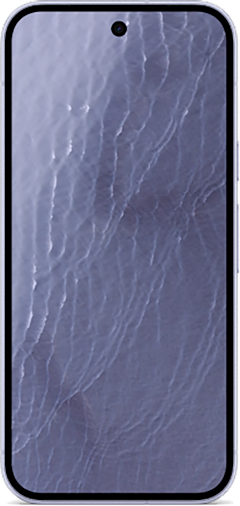
Galaxy Z Flip8 256GB
- 6.9 inch display
- Rear Cameras: 50MP, 12MP
- Front Camera: 10MP
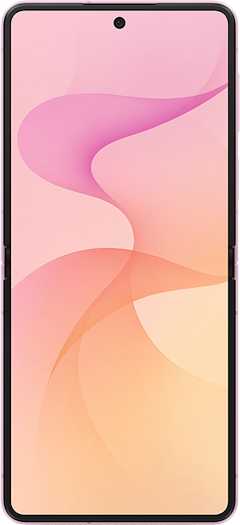
Edge 70 5G
- 6.7 inch display
- Rear Cameras: 50MP, 50MP
- Front Camera: 50MP
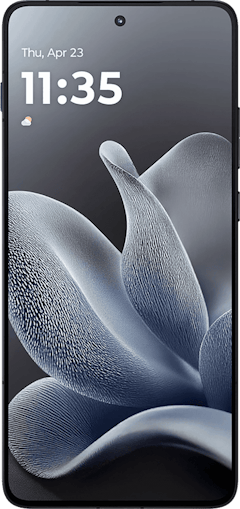
Galaxy S26 512GB
- 6.3 inch display
- Rear Cameras: 50MP, 10MP, 12MP
- Front Camera: 12MP
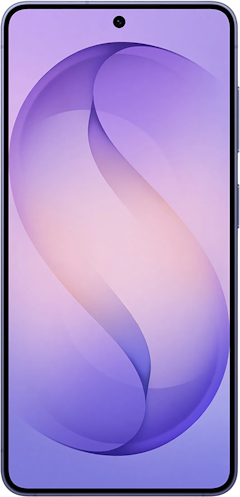
Galaxy S26+ 512GB
- 6.7 inch display
- Rear Cameras: 50MP, 10MP, 12MP
- Front Camera: 12MP

Error code 10008
Mostly pertained to Apple devices, error code 10008 will read:
A problem occurred while playing this item. Please try again, or select a different item.
This error is generally due to network problems, so you can fix it by ensuring your internet connection is stable, or restarting your device.
Netflix App not working
If your Netflix isn’t working on your smartphone, tablet or smart TV, then make sure it works on a desktop first. If it operates as usual on your computer, then the issue is most likely with the app or your mobile internet connection.
To fix this, try uninstalling and reinstalling the app, and check that your connection is fast enough to use the platform. You may also need to check for operating system updates on your device, or with the Netflix app itself.
If you’re running the latest version of Netflix on up to date software, and none of the steps above help, then the issue is probably coming directly from Netflix. At this stage it’s out of your control, and you may need to wait it out until it gets fixed.
Anula Wiwatowska
Offsite Editorial Lead | Instagram

Related Articles


Find a Better Pay TV Package
Compare options from Foxtel, Fetch TV, Netflix, Stan and more.


