

- Single unit works wonderfully
- Fantastic speeds inside the home
- Easy to set up, use, and expand
- eero Plus subscription required for full functionality
- 2.4GHz speeds could be better at range
- Only two Ethernet ports per unit
NBN PRICE CHECK
Are you overpaying for your NBN?
Check your plan against the market average in seconds.*
We track dozens of NBN providers in our database. Of those, the most popular optional networking add-on is the Amazon eero 6+. Now that the eero 6+ is getting long in the tooth, it may be time for an upgrade. Cue the entry of the eero 7 range. For entry-level users, there’s the eero 7, which is only slightly pricier than the 6+. At the top, there’s the cost-prohibitive eero Max 7. And nestled in between is the eero Pro 7. Amazon sent me a three-unit eero Pro 7 to review, and I was very impressed with how it performed.
If you’re in the market for an NBN plan to pair with the eero Pro 7, check out popular picks from our database below.
|
#1
|
Dodo

FTTP, HFC
Editor's Pick
nbn500 Unlimited Plan
$62.99/mth
Min. cost $62.99
|
|
#2
|
Tangerine Telecom

FTTP, HFC
Speedy Max NBN 500/50
$59.90/mth
Min. cost $59.90
|
|
#3
|
SpinTel

All Fixed Line nbn®
Home Starter 25/10
$41/mth
Min. cost $41
|
|
#4
|
amaysim

FTTP, HFC
NBN500
$50/mth
Min. cost $50
|
|
#5
|
Belong

FTTP, HFC
NBN Fast – Unlimited
$59/mth
Min. cost $59
|
|
#6
|
Superloop

FTTP, HFC
Family Max nbn500/50
$74/mth
Min. cost $74
|
|
#7
|
Flip

All Fixed Line nbn®
Editor's Pick
Unlimited Premium nbn25
$48/mth
Min. cost $48
|
|
#8
|
Exetel

FTTP, HFC
One Plan 500/50
$80/mth
Min. cost $80
|
|
#9
|
TPG

FTTP, HFC
nbn Home Fast Unlimited Plan
$74.99/mth
Min. cost $74.99
Link not supplied
|
|
#10
|
Kogan Internet

FTTP, HFC
Gold Plus Unlimited
$69.90/mth
Min. cost $69.90
|
Home networking equipment is tested in a first-floor apartment with thick WiFi-interfering walls using an FTTC NBN 100/20 connection. The networking device is deliberately placed at one end of the apartment (instead of a central location) to test wireless range and penetration. Basic speed tests are performed at multiple locations inside and outside the apartment, first with a Synology RT6600ax router and then with the networking device being reviewed for comparative results. Everyday, internet tests are also performed with relevant results mentioned for streaming, web browsing, online gaming, video and voice calls, as well as downloading large files and transferring them across devices on the local network.
What we like about the Amazon eero Pro 7
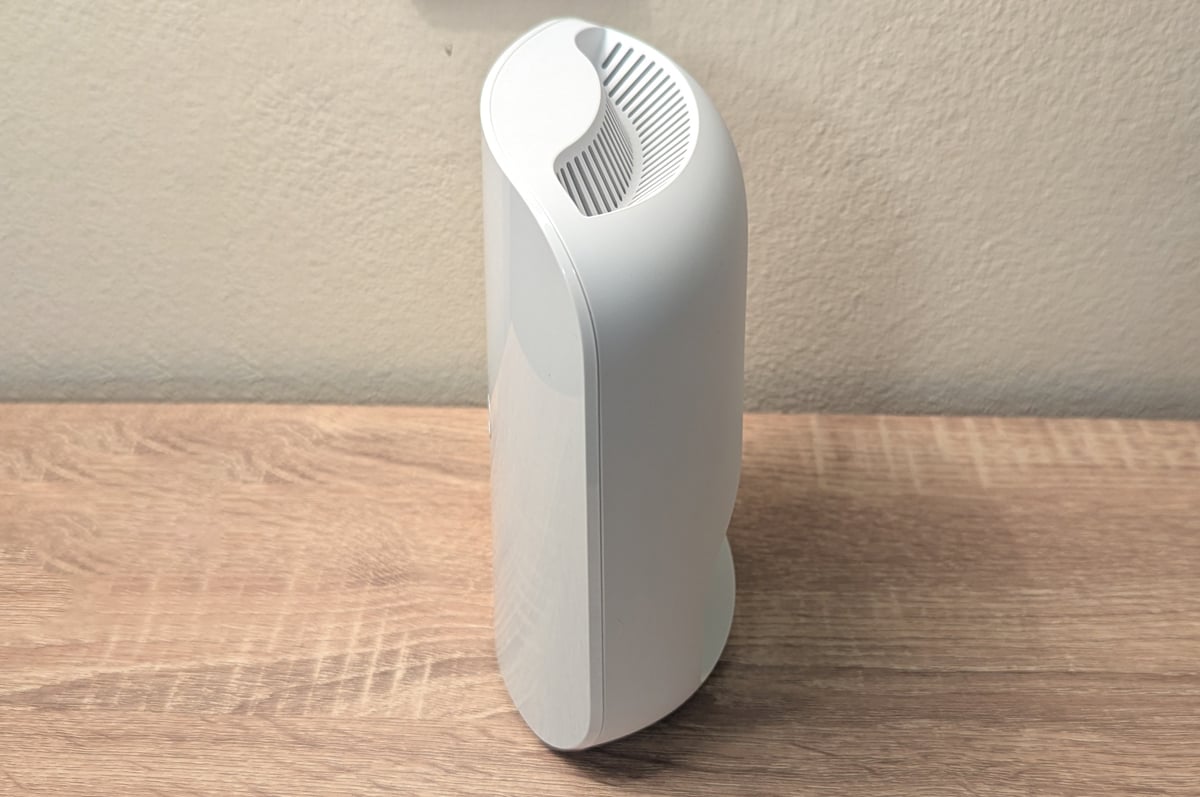
The price is right for the Amazon eero Pro 7. It’s built as a replacement for the eero Pro 6E, which retails at $449.99 for a single unit or $949.99 for a three-pack. For $529.99, you can buy a one-pack Pro 7, or it’ll cost $1,199.99 for a three-unit Pro 7 mesh WiFi system. That’s a reasonable price increase for the step up from WiFi 6E to WiFi 7.
Physical setup for the Pro 7 is a cinch; just make sure you download the eero companion app ahead of configuration. With two auto-sensing Ethernet ports on the back and a single USB-C port for power, you really can’t plug the wrong thing into the wrong port. Pick either of the Ethernet ports to connect to your modem or modem-router and half the job is done.
For first-time eero users, you’ll have to create an account, but then it’s guided setup afterwards. Like other eero networking gear, the eero Pro 7 is initially detected via Bluetooth, so ensure that’s enabled on your device and you’re within range. Outside of that, follow the prompts to get online. If you’re already working with an eero network, setup is even easier. It took me around 10 minutes to connect to the internet, and that included a two-minute false start with my FTTC modem power cycle.
After installation completes, you can optionally update to the latest firmware or tell it to wait for a more convenient time. It only took about five minutes for the initial firmware update on my NBN 100 connection. More impressively, with the main eero Pro 7 configured, it only took about five minutes per device to add an extra unit. If you prefer, there’s an ‘eero Simple Setup’ toggle that can automatically add wired eero units to your home network. Most homes won’t even need to interact with the eero companion app again, as firmware updates are automated and default to downloading between 2:00am and 3:00am.
There’s a single operating light on the eero Pro 7, but you can lower the brightness or disable it entirely if an eero unit is in a room where light is distracting. With the basics out of the way, you’re ready to go. During my testing time with the eero Pro 7, it didn’t skip a beat for any internet task I threw at it, including online gaming, video calls, video streaming on multiple devices, and local file transfers. While the smart queue management (SQM) feature had initially disappeared from the app – Amazon’s term for Quality of Service (QoS), which automates finite internet bandwidth requirements for high-priority uses – it was active by default, intuitively preserving tasks like streaming while other devices are downloading at uncapped speeds. The SQM toggle returned in a late-May 2025 update, and I highly recommend you ensure it's on if you're in a home with a lot of connected devices and you want to preserve internet speeds.
Speaking of speeds, the eero Pro 7 is seriously impressive on the latency/downloads/uploads front. If your wireless devices support it, the Pro 7 has a comparatively wide-reaching 6GHz network, which offers Ethernet-like speeds. Effectively, those two Ethernet ports on extra eero Pro 7 units can connect to priority wired devices, while still enjoying low latency and preserved internet speeds via the 6GHz band. More practically, everywhere inside my apartment – including rooms prone to WiFi interference – offered great speeds with a single eero Pro 7 unit. Some of the speed outside my apartment were the equivalent of those inside when I added more Pro 7 units, too.
Routers, modem-routers and mesh WiFi systems are compatible with most NBN connections, including FTTP, HFC, FTTC, Fixed Wireless and Sky Muster satellite. All of these NBN technologies use respective network termination devices (NTDs), which is a fancy term for “connection box” or “modem”. If you live in an FTTB or FTTN home, you’ll need a modem-router to get online. You can still connect a router or mesh WiFi system to a modem-router, but the modem-router first needs to be in bridge mode so it can then connect to a router or mesh WiFi system.
What we dislike about the Amazon eero Pro 7

In terms of the design, it’s disappointing to see Amazon move away from the chunky-but-still-compact design logic of the eero Pro 6E and make the Pro 7 close to the bulkier Max 7. Both Pro 7 and Max 7 are built to sit in vertical configurations, which may mean more troubles positioning them than the flatter designs of the Pro 6E and eero 6+.
It’s also tricky to get past the limited ports: no USB ports for media sharing and only two Ethernet ports. For me, that meant plugging every priority wired device into a network switch before connecting it to the only other available Ethernet port on the Pro 7 once the modem was connected. It’s an unfortunate trend of the mesh WiFi movement that’s relegated a quantity of Ethernet ports to ‘nice to have’ rather than ‘at least four’.
While 6GHz and 5GHz WiFi speeds were almost exclusively impressive, there’s a big speed hit when devices shift to a range where 2.4GHz kicks in. At worst, there was an 80.81Mbps difference between best-case WiFi speeds and slowest 2.4GHz speeds for my single-unit tests. Those speeds become completely unusable if the 2.4GHz signal drops to the lowest ‘Poor’ rating. Latency was mostly impressive in my tests, but there were a few tests where latency blew out from single digits to 98ms. That’s still usable, but it's not ideal for fast-paced online gaming.
I didn’t experience any wireless device dropouts, but there were times when a two- or three-unit eero Pro 7 configuration seemingly struggled to pick the best eero. If you’re using a WiFi device roughly halfway between two eero Pro 7 units, you may get slower speeds if it prioritises one over the other.
My biggest gripes are applicable to any eero networking device, and that’s because they’re app-related. There’s still an apparent bug that makes changing the eero Pro 7’s IP address and DHCP server range more complicated than it should be. There are workarounds but, if it is a bug rather than an out-of-line unintuitive feature, I hope Amazon patches it soon. The other issue is that full functionality comes from an eero Plus subscription for $15.99 a month or $159.99 per year. While some advanced functionality behind a subscription model is halfway acceptable, other features (like full parental controls) shouldn’t be locked behind a paywall, especially not after the initial product price paid.
Amazon sent me an eero Plus subscription to test alongside the eero Pro 7. Let's start with the cons. The 'Network controls' menu controls content filters, app blocking, site whitelisting/blacklisting, ad blocking and advanced security. There are basic parental controls in the eero app if you create a profile for one or more devices, wherein you can schedule internet pauses. You need to know the specific device names, though, and those aren’t always easily translated. More advanced parental controls come via ‘content filters’ with an eero Plus subscription. Outside of content filters, the other settings are more 'nice to have' than essential, which is also true of the other network-specific features: eero Internet Backup, activity history, WiFi radio analytics and DDNS.
If you're an advanced user, those features may be of interest, but the average user will likely struggle to find the value. The better part of the value proposition of eero Plus, though, is from the extras that are outside of the eero ecosystem. Subscribers get access to 1Password, Guardian VPN and Malwarebytes, which are solid inclusions, but only if you're in the market for a password manager, VPN and/or anti-virus (ideally, all three).
Amazon eero Pro 7 – Final Thoughts

If you remove that gripe about app-related oddities, which is applicable to all eero products, there’s not a whole lot in the cons column to stop the eero Pro 7 from being wholly recommendable. It succeeded where the Eero Pro 6E and pricier Max 7 failed, offering a viable single-unit router that comfortably tackled the WiFi dead spots in my interference-prone apartment.
And with comparatively affordable pricing for a three-unit configuration, a future-proofed WiFi 7 upgrade to your home network has never been more recommendable. You should absolutely consider the eero Pro 7 if you want NBN 2000 or one of the retooled beyond-NBN 100 plans coming in 2025.
We consider several factors when reviewing networking equipment, including:
- Type: Router, modem-router or mesh WiFi system. Supported NBN technologies and plan speeds.
- Design: Size, weight and standing options. Internal or external antennae. Available ports, WiFi version, and single, dual or triband wireless.
- Setup: Plug-and-play configurations vs laborious setup. Companion apps and guided setups are a plus.
- Performance: Ethernet and WiFi speed tests for downloads, uploads and latency. Real-time latency test for online gaming, VoIP and/or video calls. Plus, everyday use like downloading, uploading, browsing and streaming.
- Versatility: Band steering (single SSID), quality of service and other features. Ease of configuration, plus mesh expansion.
These are the most popular NBN 50 plans with WhistleOut users this week:
|
#1
|
Dodo
All Fixed Line nbn®
Editor's Pick
nbn50 Unlimited Plan
$57.99/mth
Min. cost $57.99
|
|
#2
|
amaysim
All Fixed Line nbn®
NBN50
$75/mth
Min. cost $75
|
|
#3
|
Belong
All Fixed Line nbn®
NBN Standard Plus – Unlimited
$55/mth
Min. cost $55
|
|
#4
|
Tangerine Telecom
All Fixed Line nbn®
Value Plus NBN 50/20
$64.90/mth
Min. cost $64.90
|
|
#5
|
Superloop
All Fixed Line nbn®
Extra-value nbn50/20
$69/mth
Min. cost $69
|
|
#6
|
TPG
All Fixed Line nbn®
nbn50 Unlimited Plan
$69.99/mth
Min. cost $69.99
Link not supplied
|
|
#7
|
iiNet

All Fixed Line nbn®
nbn50 Liimitless
$69.99/mth
+ $10 Upfront
Min. cost $79.99
Link not supplied
|
|
#8
|
Kogan Internet
All Fixed Line nbn®
Silver Unlimited
$69.90/mth
Min. cost $69.90
|
|
#9
|
Flip
All Fixed Line nbn®
Unlimited Family nbn50
$68/mth
Min. cost $68
|
|
#10
|
Vodafone

All Fixed Line nbn®
Essential+ nbn®
$94/mth
Min. cost $94
Link not supplied
|
Nathan Lawrence
Freelance Contributor

Find a better internet plan
Thousands of internet plans unpacked. All the facts. No surprises.

Related Articles


Internet Plans by State
- Internet Plans in ACT
- Internet Plans in NSW
- Internet Plans in NT
- Internet Plans in QLD
- Internet Plans in SA
- Internet Plans in TAS
- Internet Plans in VIC
- Internet Plans in WA


